
Getting started · 0:56
Accept your invitation and sign in for the first time
For a new member of staff who has received an invitation email: how to accept it, choose a password and sign in to LicenceGuard for the first time.
0:00Your employer invites you
Your employer starts it. In Users, they select Invite user, choose your employee record and the Employee role. The invitation goes to the work email on your record.
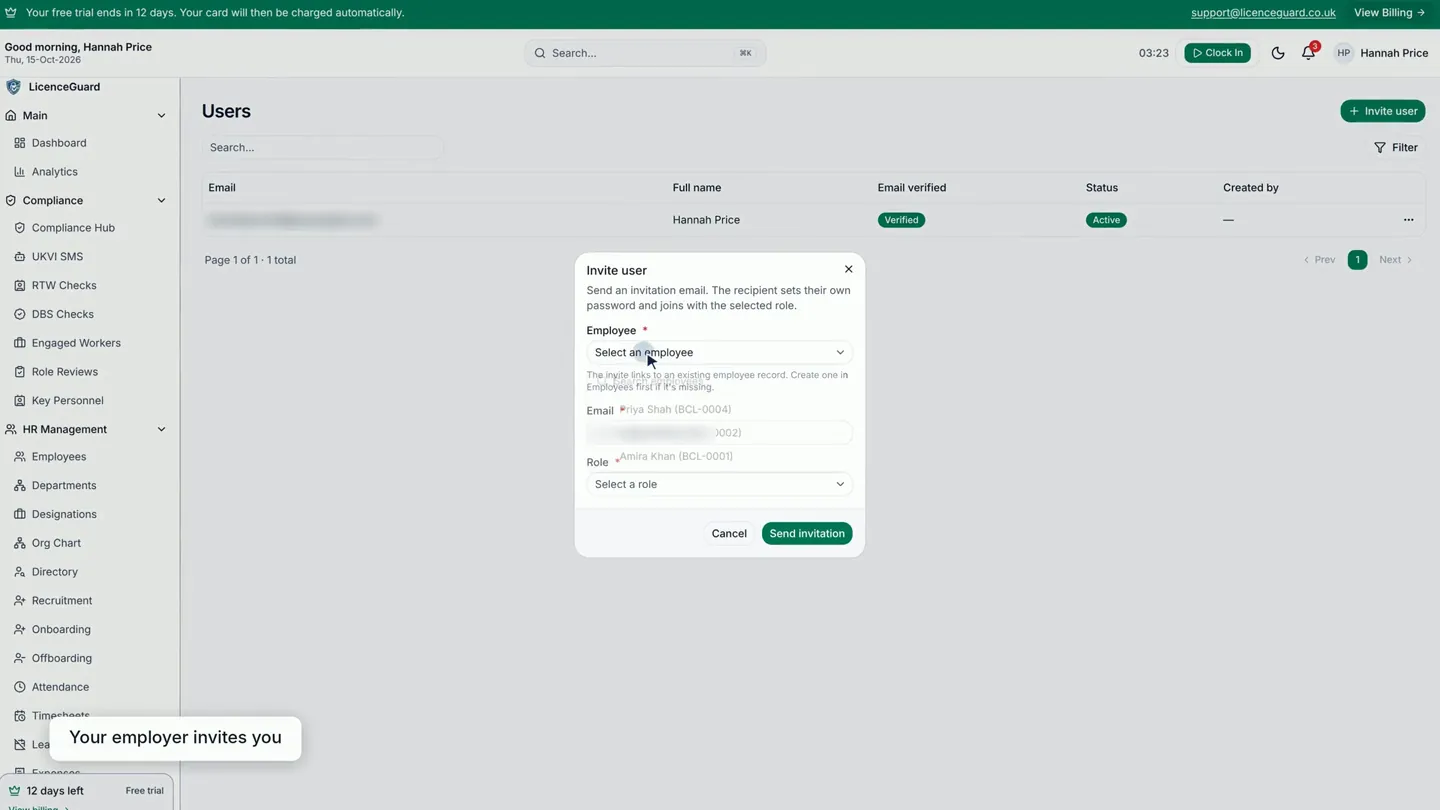
0:12The invitation is sent
Selecting Send invitation emails you a link to set up your account. Open that link: the page asks you to accept your invitation and set a password, and shows the name you are joining as.
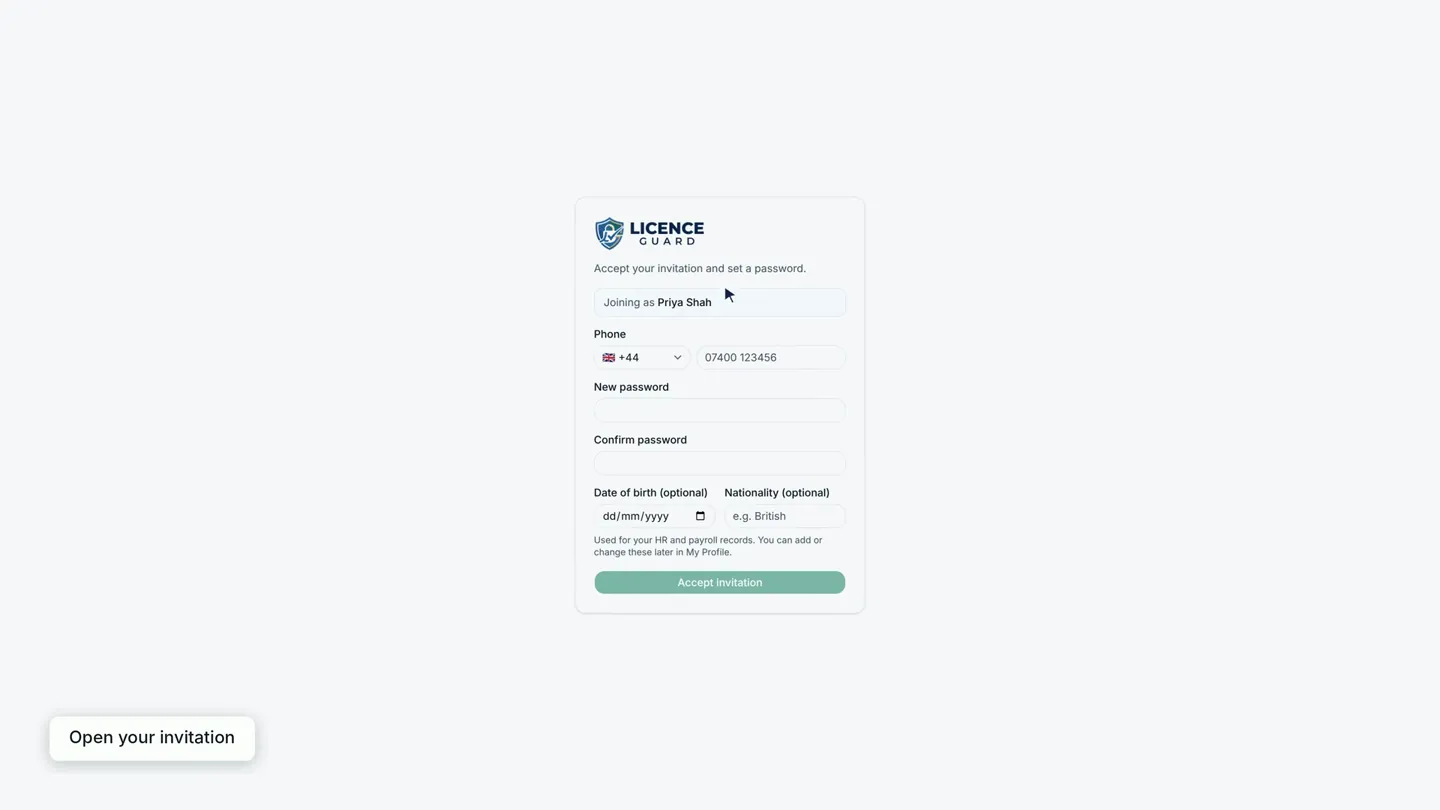
0:24Choose a password
Choose a password of at least eight characters, then type it again to confirm it.
Date of birth and nationality are optional. You can add or change them later in My Profile.
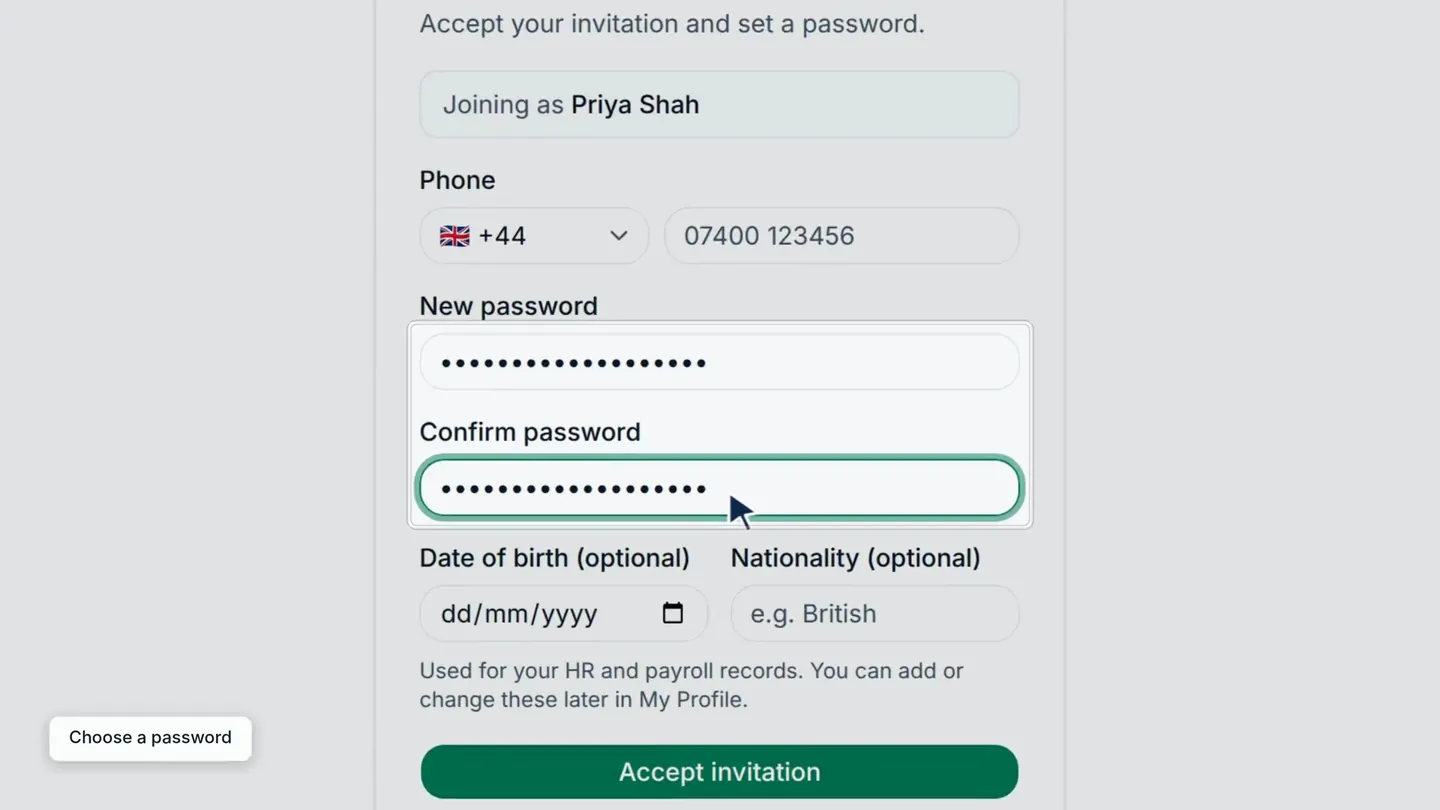
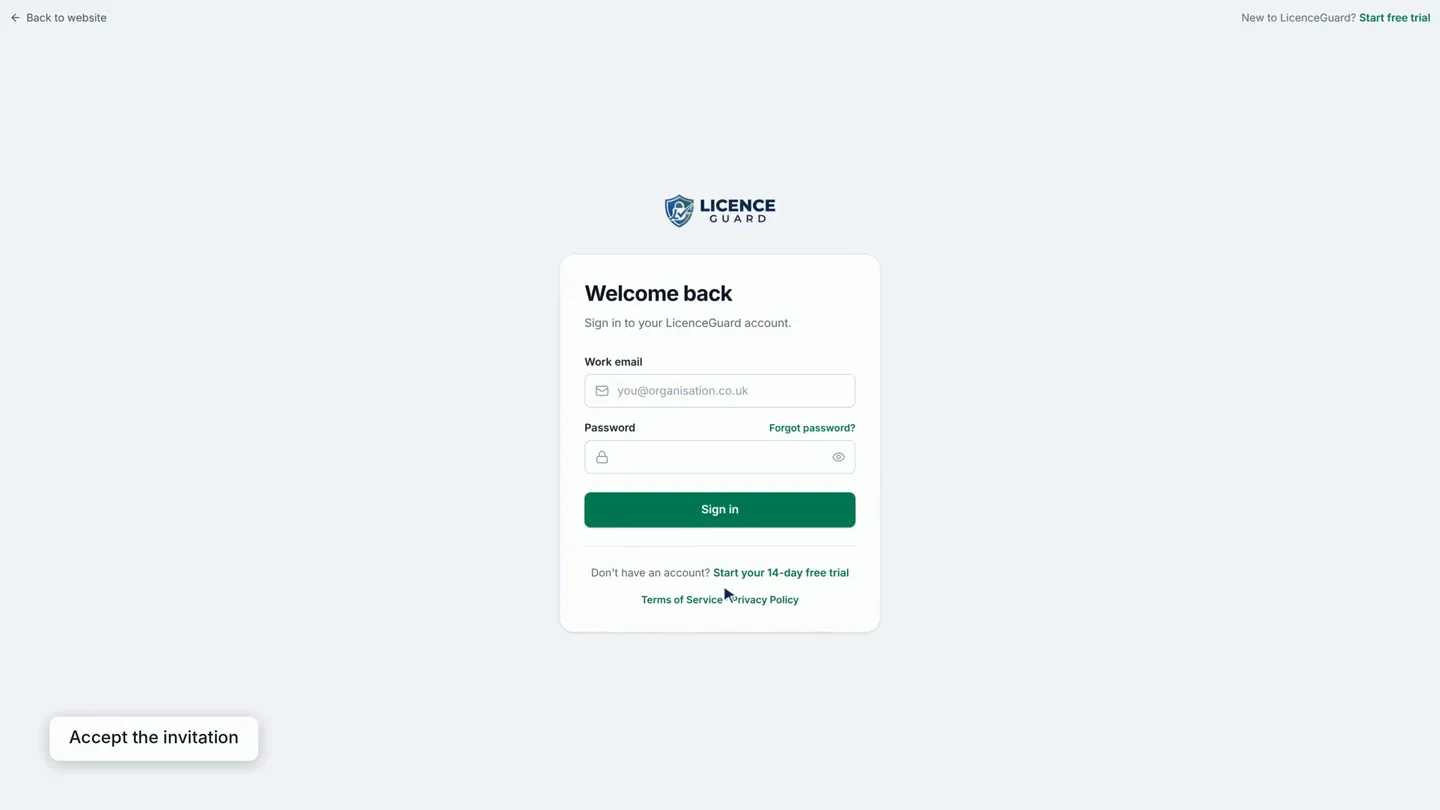
0:34Accept the invitation
Select Accept invitation. Your account is set up and you are taken to the sign-in page. Sign in with your work email address and the password you have just chosen.
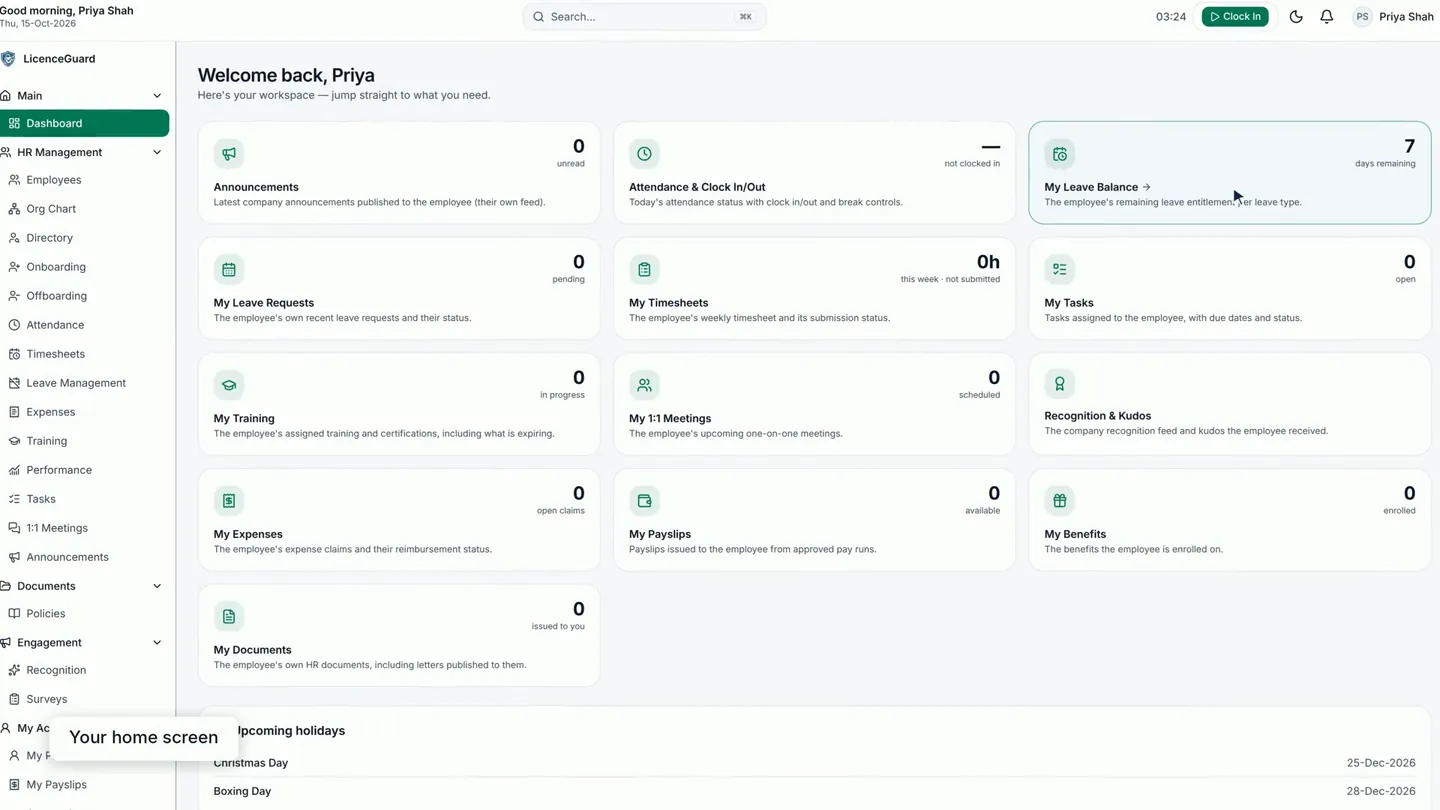
0:45Your home screen
You land on your own home screen. The menu on the left lists the screens you can open, and the cards link to everyday tasks such as leave, timesheets, training and payslips.
See what staff can do from their phones in employee self-service on a phone.
Read the full transcript
0:02 Your employer starts it. In Users, they select Invite user, choose your employee record and the Employee role. The invitation goes to the work email on your record.
0:12 Send invitation emails you a link to set up your account.
0:16 Open the link in your invitation email. The page asks you to accept your invitation and set a password, and shows the name you are joining as.
0:25 Choose a password of at least eight characters, then type it again to confirm.
0:29 Date of birth and nationality are optional. You can add or change them later in My Profile.
0:35 Select Accept invitation. Your account is set up, and you are taken to the sign-in page.
0:41 Sign in with your work email address and the password you have just chosen.
0:45 You land on your own home screen. The menu on the left lists the screens you can open, and the cards link to everyday tasks.
Related videos
Employee self-service on a phone
For employers whose staff work from their phones: home screen, documents, leave, shifts, payslips, policies and bank-detail changes.
Welcome: a 1-minute tour of LicenceGuard
For a new administrator on their first day: where the dashboard, the Compliance and HR Management menus, the Compliance Hub, the reminders bell and your own profile are.
Set up LicenceGuard in four steps
For owners and HR leads deciding whether LicenceGuard fits: import your people, set the documents you require, and enter your sponsor licence details in four steps.


Get started
Ready to try it on your own records?
Start your 14-day free trial, or book a demo and we will walk you through LicenceGuard with your own questions in mind.
- Card required
- Cancel during your trial
- No VAT currently charged